Create and Edit a Dashboard
Create a Personal dashboard, add widgets, and edit it by hand or with the AI Assistant.
Dashboards group widgets so you can answer a question in one view. Any user can create Personal dashboards.
New to Agentic Studio? Start with Agentic Studio Overview.
Create a dashboard
- Open Studio.
- Select New Dashboard.
- Enter a Name and, optionally, a Description.
- Under Visibility, choose Personal (only you can see and edit it) or Shared (everyone in your organization can view it), then select Create.
The new dashboard is listed in the library under Personal.
To start from an existing dashboard, Clone it instead.
Add widgets
- Open a Personal dashboard you own.
- Select Add a Widget.
- Build the widget. See Build a widget.
- Click Save Widget. It is placed on the dashboard.
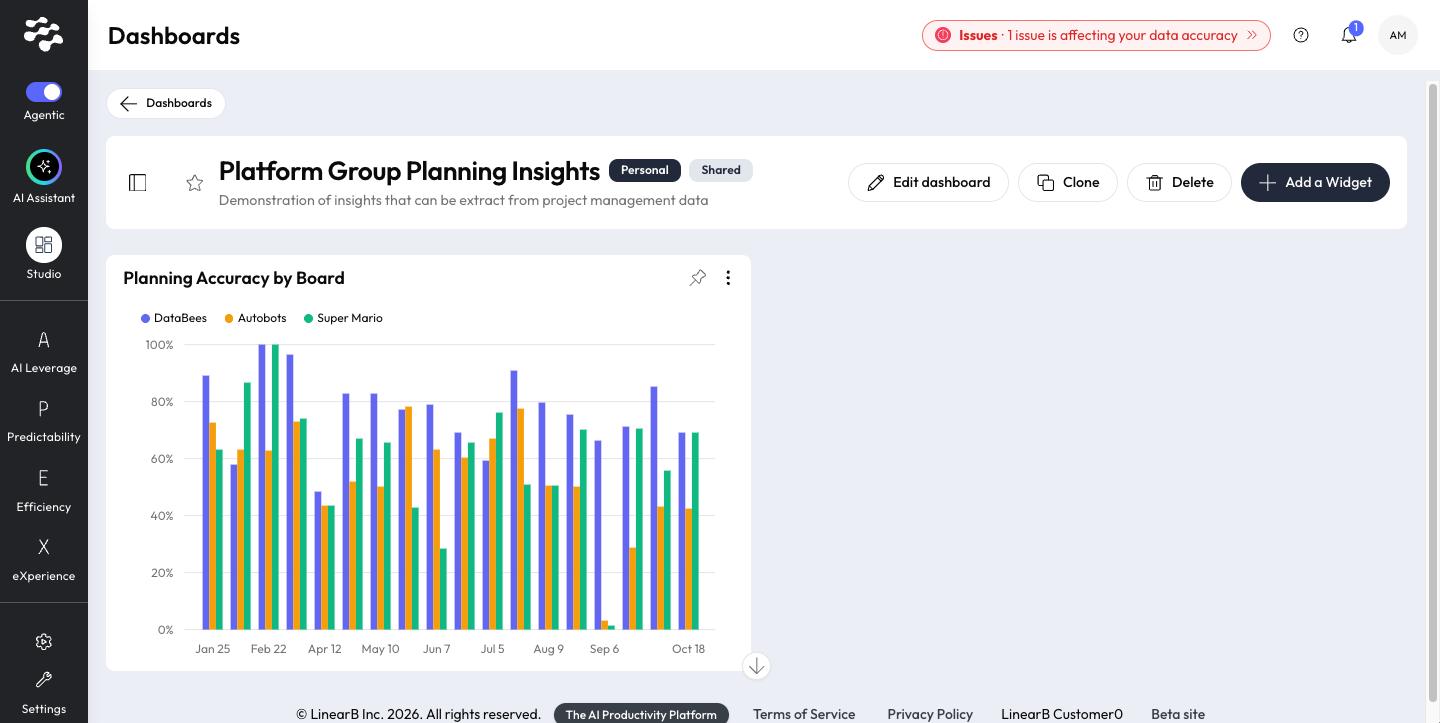
Edit a dashboard's details
- Open a Personal dashboard you own.
- Select Edit dashboard.
- In the Edit Dashboard window, change the Name, the Description (optional), or the Visibility.
- Click Save, or Cancel to close without changes.
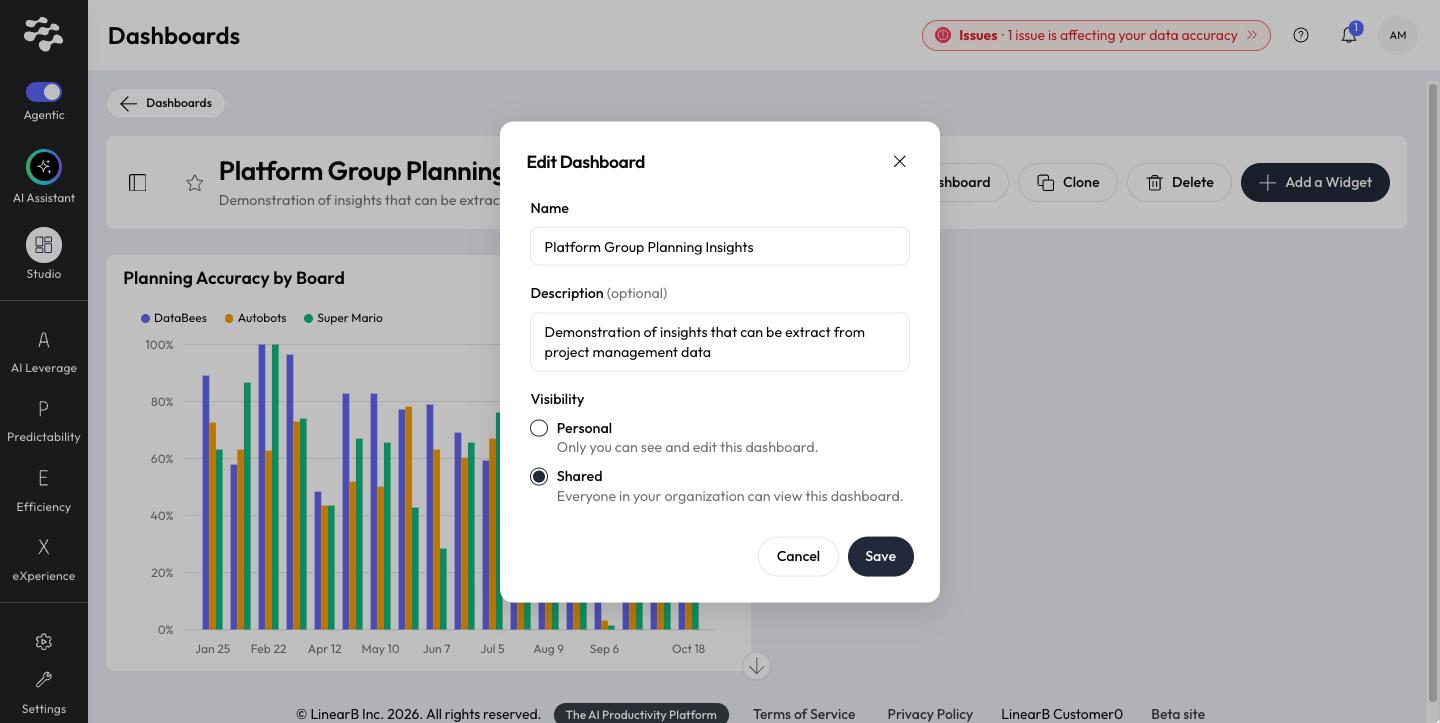
Visibility | Meaning |
Personal | Only you can see and edit this dashboard. |
Shared | Everyone in your organization can view this dashboard. |
Work with widgets
Open a widget's menu (⋮) on a Personal dashboard:
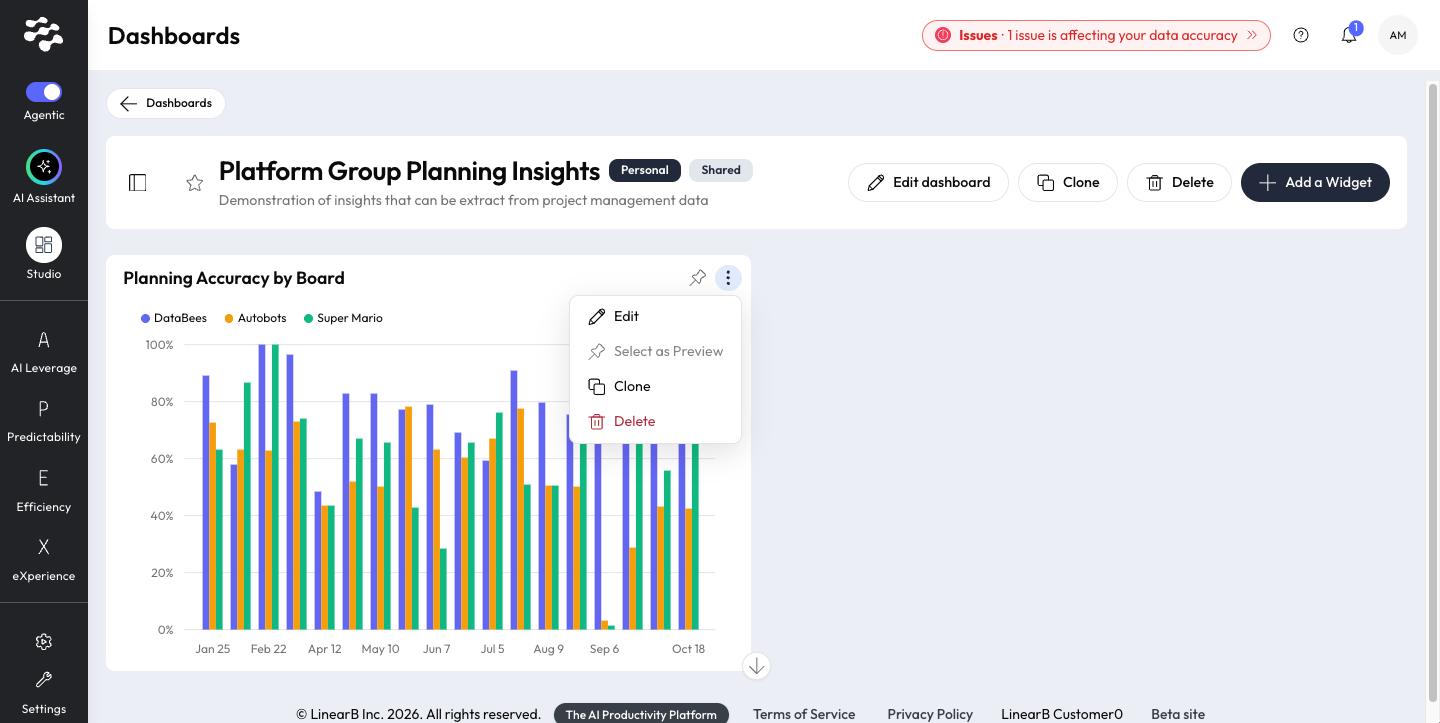
Action | What it does |
Edit | Opens the widget in the builder. |
Select as Preview | Uses this widget as the dashboard's preview on its library card. |
Clone | Copies the widget. |
Delete | Removes the widget from the dashboard. |
On LinearB Catalog dashboards, the widget menu offers Clone only.
Arrange and resize widgets
On a dashboard you own, change the layout directly on the dashboard. LinearB saves the new layout as soon as you drop or release a widget.
- Move a widget: hover over it, then drag the handle (•••) at the top center of the widget to a new position. A grid shows where it will land.
- Resize a widget: drag its bottom-right corner. Each widget type has a minimum and maximum size. Data Point widgets have a fixed size.
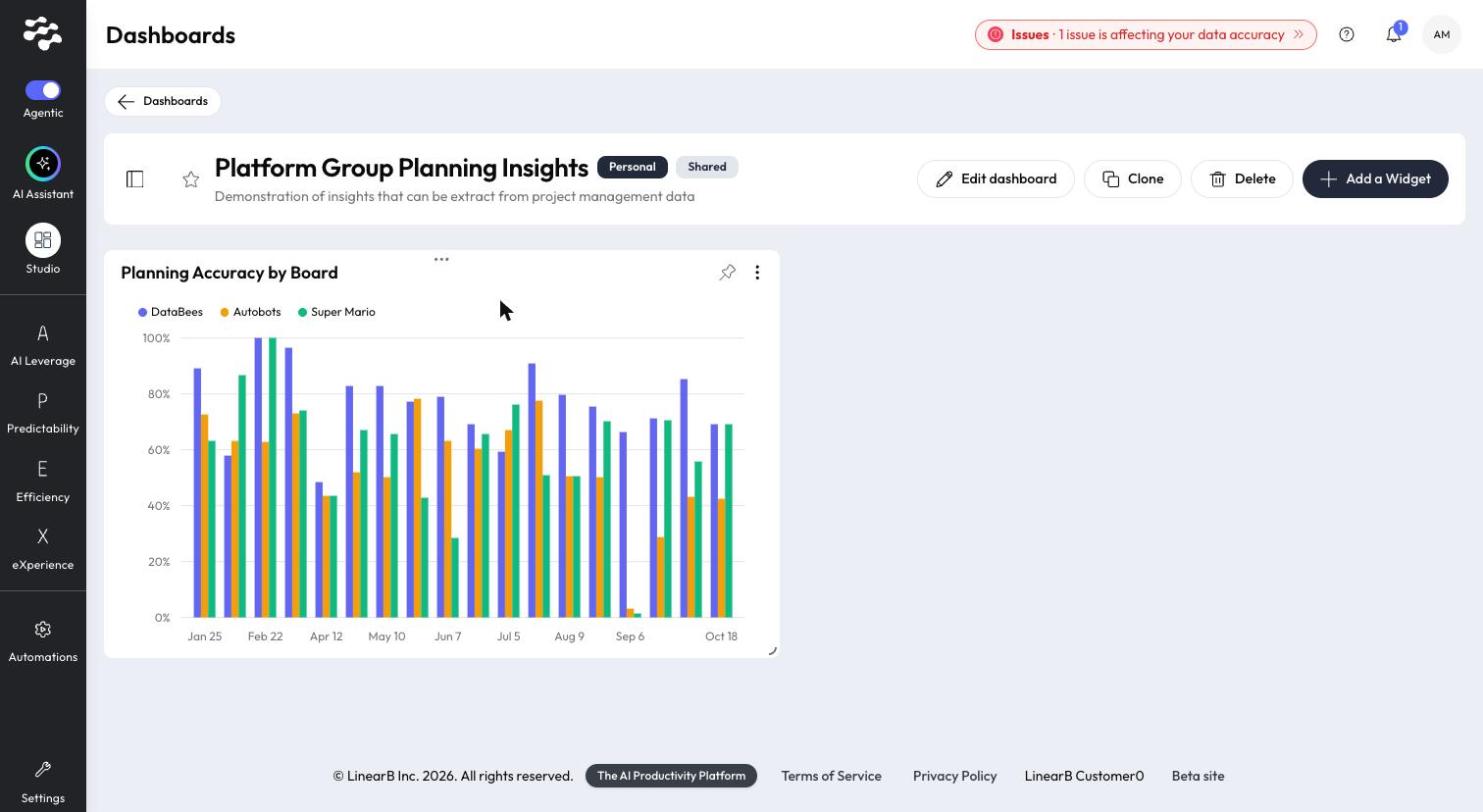
If the browser window is too narrow to show the full layout, the dashboard reflows to fit and moving and resizing are paused until you widen the window. You can't change the layout of LinearB Catalog dashboards or dashboards shared with you. Clone them to get a Personal copy you can arrange.
Filters
Select the filters icon next to the dashboard title to show or hide the filters panel: time period (default Past 3 months), teams, and boards.
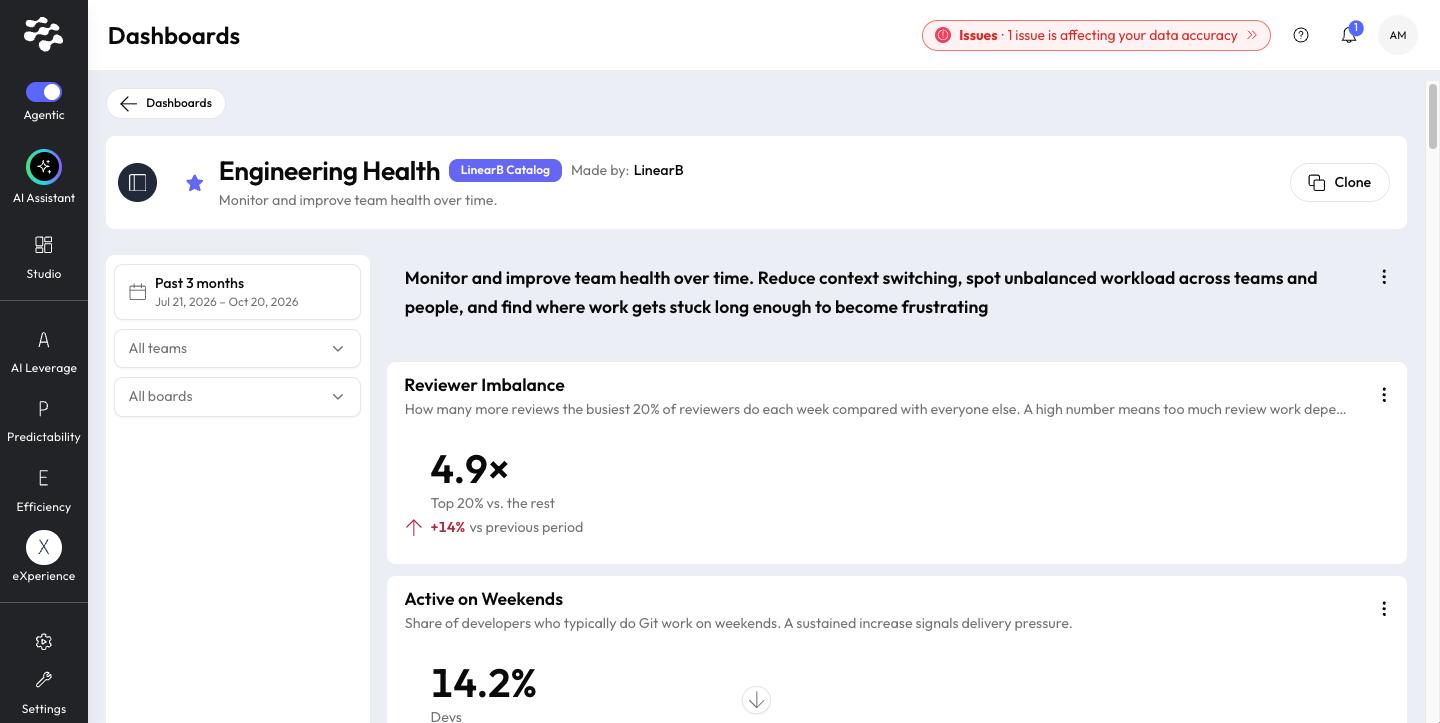
To apply filters when viewing a dashboard, see The Dashboard Library.
Clone or delete a dashboard
- Clone in the dashboard header creates a Personal copy you can change.
- Delete in the header of a Personal dashboard you own deletes it. You can also delete it from its card menu in the library.
Need help with Agentic Studio? Contact support@linearb.io or visit the LinearB Help Center.
How did we do?