Build a Widget
Use the builder to create or change a widget: describe it to the AI Assistant or write the SQL, run the query, and save.
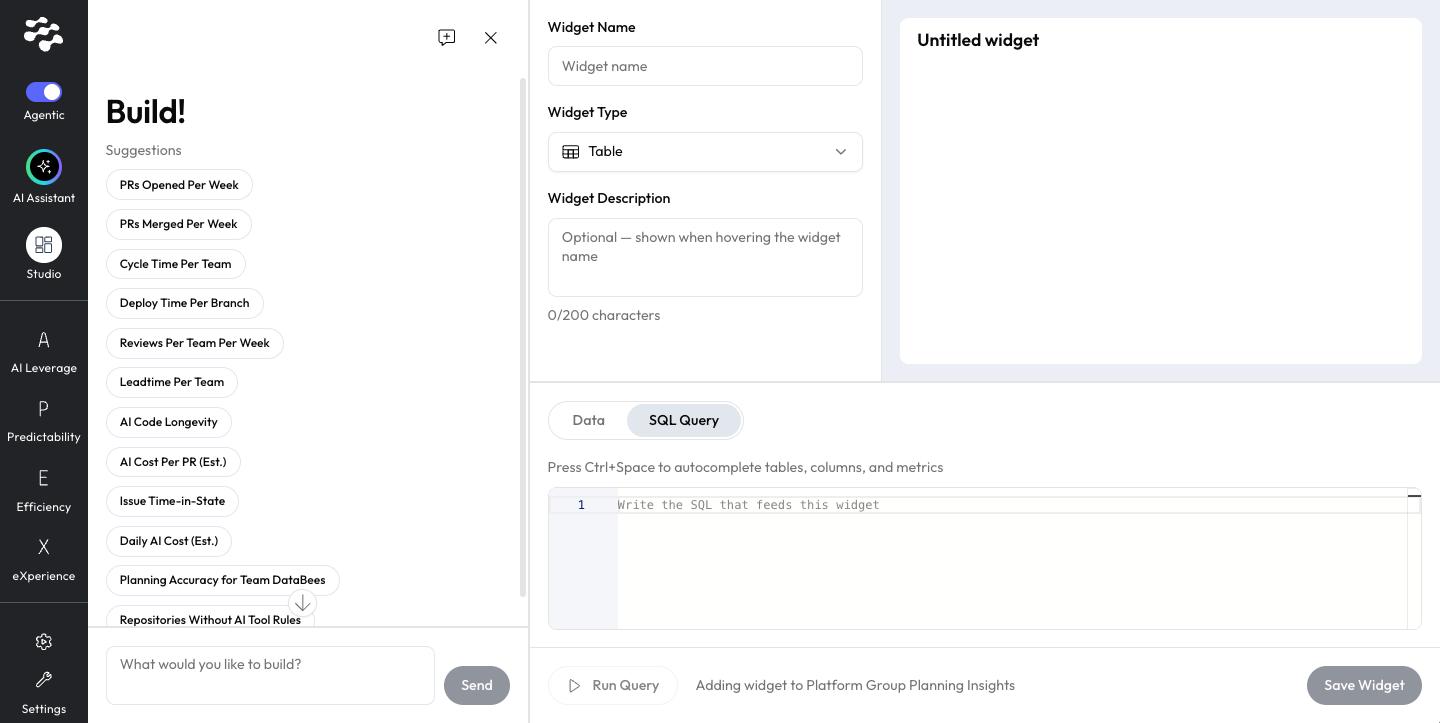
The builder is where you create or change a widget. On the left, the AI Assistant helps you build; on the right, you set the widget's details, write or review its SQL, and see the result.
New to Agentic Studio? Start with Agentic Studio Overview.
Open the builder
- Pick a Build? starting point on the assistant home.
- Accept the assistant's offer to build, when no metric answers your question.
- Select Add a Widget on a Personal dashboard you own. The builder shows Adding widget to and the dashboard name.
- Select Edit in a widget's menu (⋮). The builder opens with that widget.
Builder areas
Area | Use it to |
Build! (assistant) | Pick a suggestion or type in What would you like to build? and click Send. Use New chat to start over, and X to close the builder. |
Widget Name | Name the widget. |
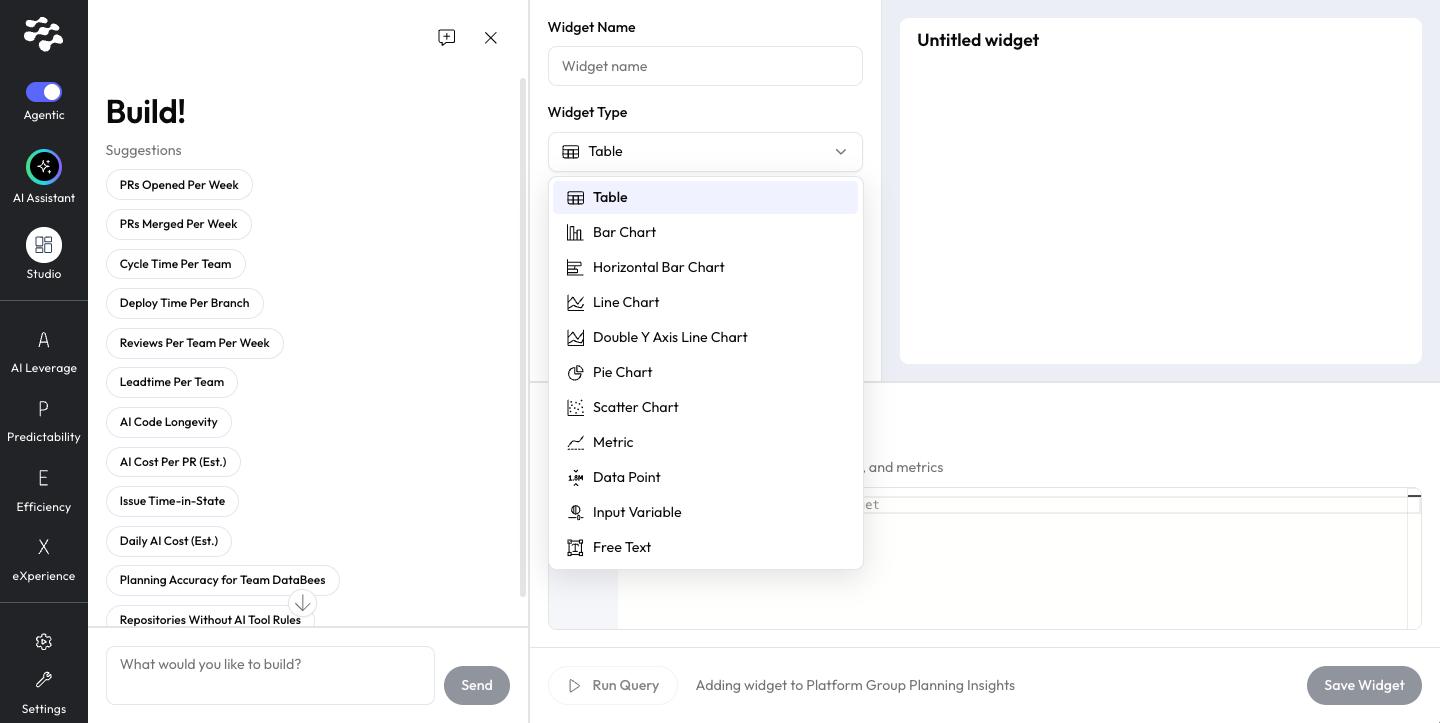
Widget Type | Choose how the widget is shown. See Widget types. |
Widget Description | Optional, up to 200 characters. Shown when you hover over the widget name. |
Preview | See the widget as it will look. |
Data and SQL Query | Review the data, or write the SQL that feeds the widget. Press Ctrl+Space to autocomplete tables, columns, and metrics. |
Build a widget
- Open the builder.
- Describe the widget to the assistant, or write the SQL yourself.
- Enter a Widget Name and choose a Widget Type.
- Click Run Query and check the preview.
- Click Save Widget.
The widget is placed on its dashboard.
Good to know
- Widgets you save are Personal content.
- Selecting AI Assistant in the menu bar never opens the builder.
Related articles
Need help with Agentic Studio? Contact support@linearb.io or visit the LinearB Help Center.
How did we do?