The Dashboard Library
Find every Agentic Studio dashboard you can access in Studio, with All, Personal, Shared with me, and LinearB Catalog tabs and favorites.
The Dashboards library lists every Agentic Studio dashboard you can access. Open it from Studio in the menu bar.
New to Agentic Studio? Start with Agentic Studio Overview.
Library tabs
Tab | What it lists |
All | Every dashboard you can access. |
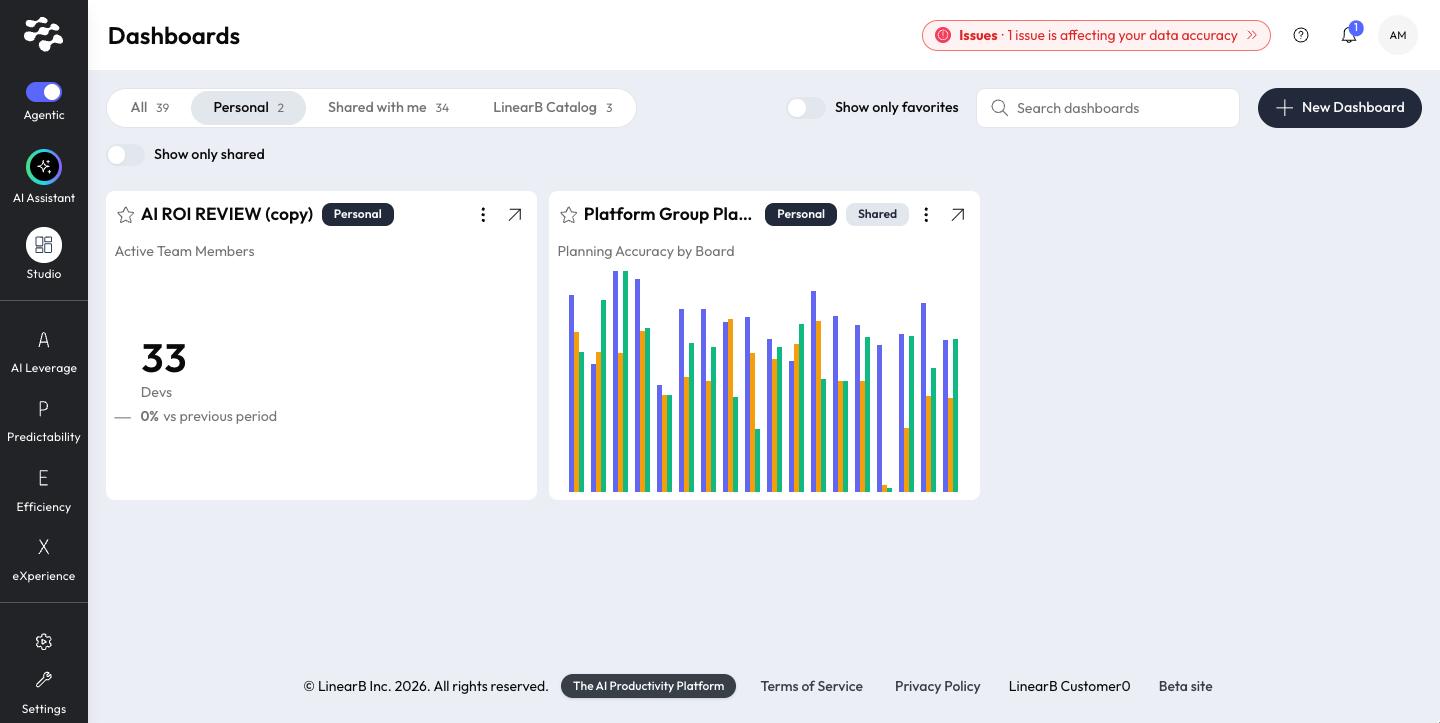
Personal | Dashboards you created, including the ones you shared. Turn on Show only shared to see just the dashboards you shared. |
Shared with me | Dashboards other users in your organization shared. |
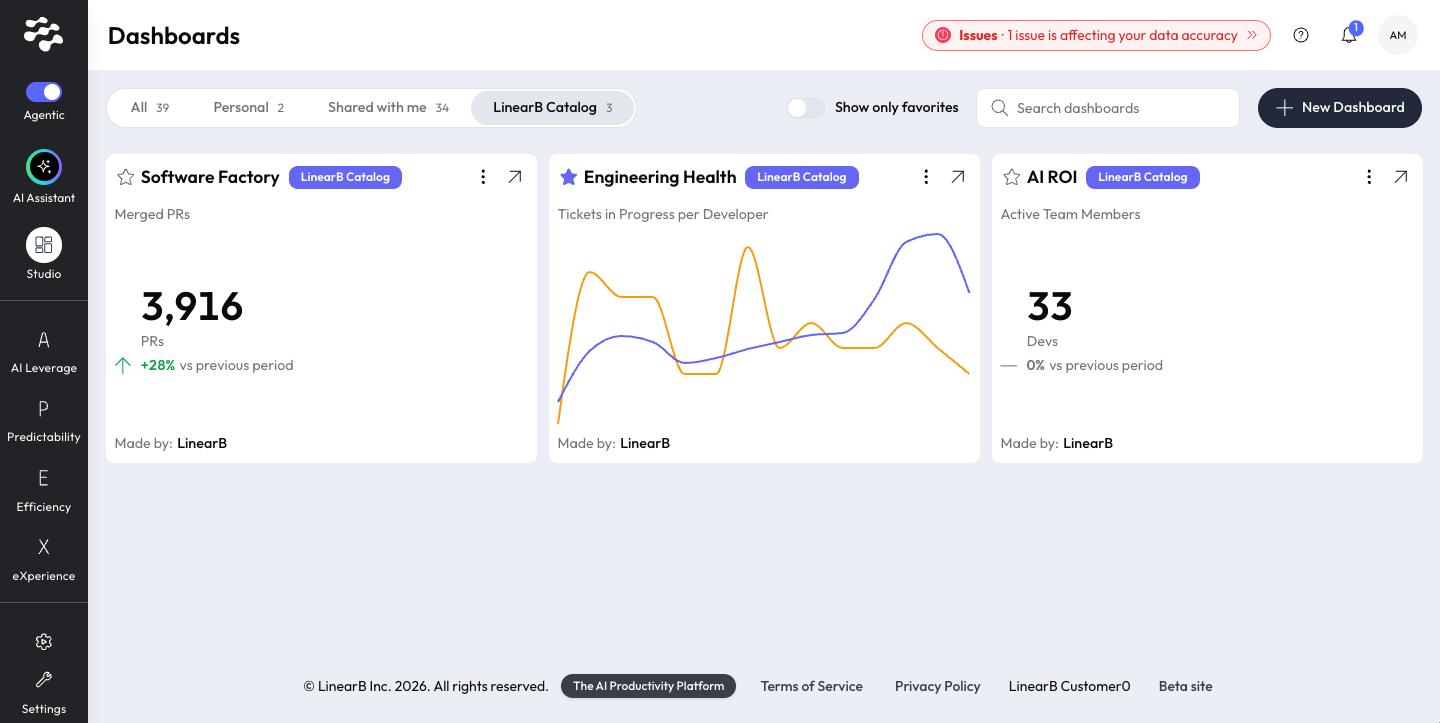
LinearB Catalog | Out-of-the-box dashboards curated by LinearB. |
Each tab shows how many dashboards it holds. Use Search dashboards to find a dashboard by name.
LinearB Catalog dashboards
- AI ROI
- Engineering Health
- Software Factory
Favorites
- Select the star next to a dashboard's name to add it to your favorites. Select it again to remove it.
- Turn on Show only favorites to filter the library to your favorites.
Work with dashboards
- Select the arrow (↗) on a card to open the dashboard. Each card shows a preview widget.
- New Dashboard: see Create and edit a dashboard.
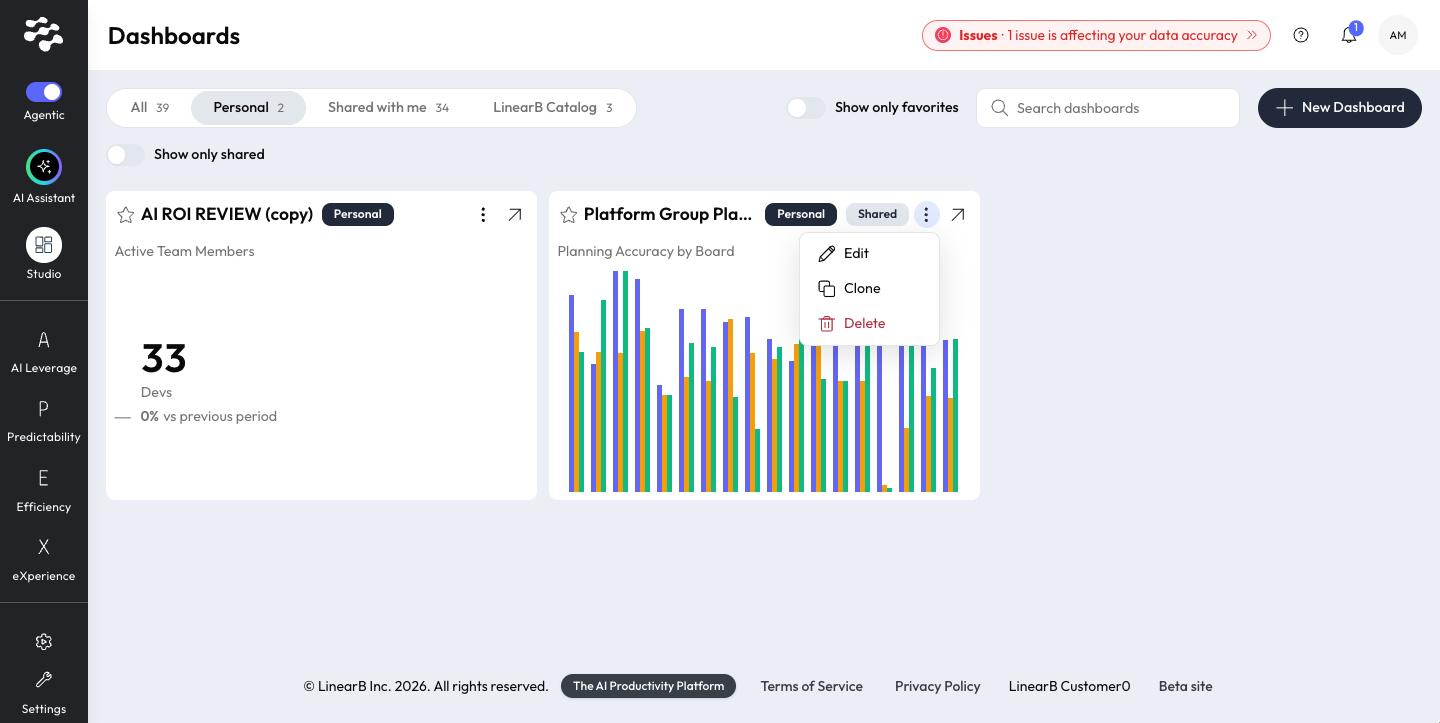
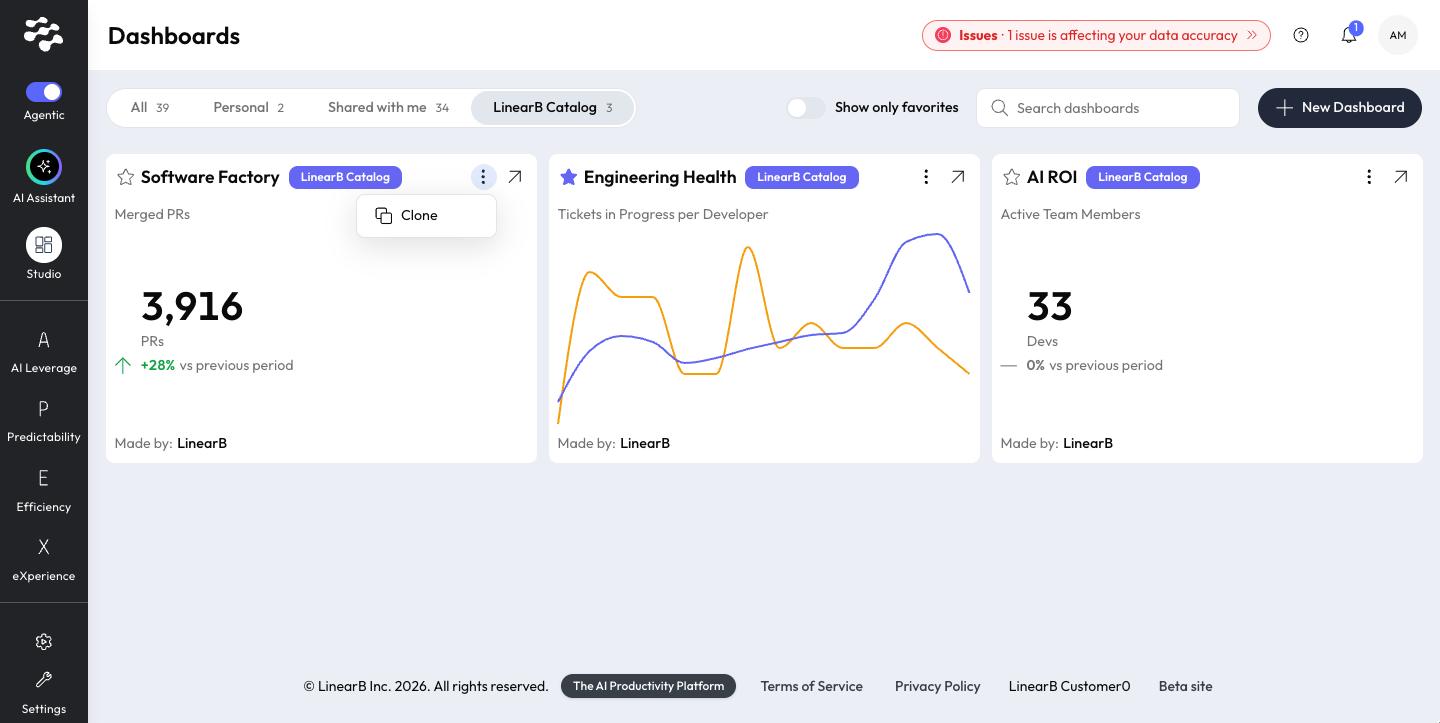
- Open a card's menu (⋮) for its actions: Edit, Clone, and Delete on your Personal dashboards, and Clone on LinearB Catalog dashboards.
- Share a Personal dashboard with your organization. See Share a dashboard.
Each dashboard shows its badges (Personal, Shared, or LinearB Catalog) and a Made by label, except on your own Personal dashboards.
View a dashboard and use filters
Select the arrow (↗) on a card to open a dashboard. The header shows the dashboard's name, its badges (Personal, Shared, or LinearB Catalog), and Made by.
Select the filters icon next to the dashboard title to show or hide the filters panel. Filters apply to every widget on the dashboard:
- Time period: the default is Past 3 months.
- Teams: All teams by default.
- Boards: All boards by default.
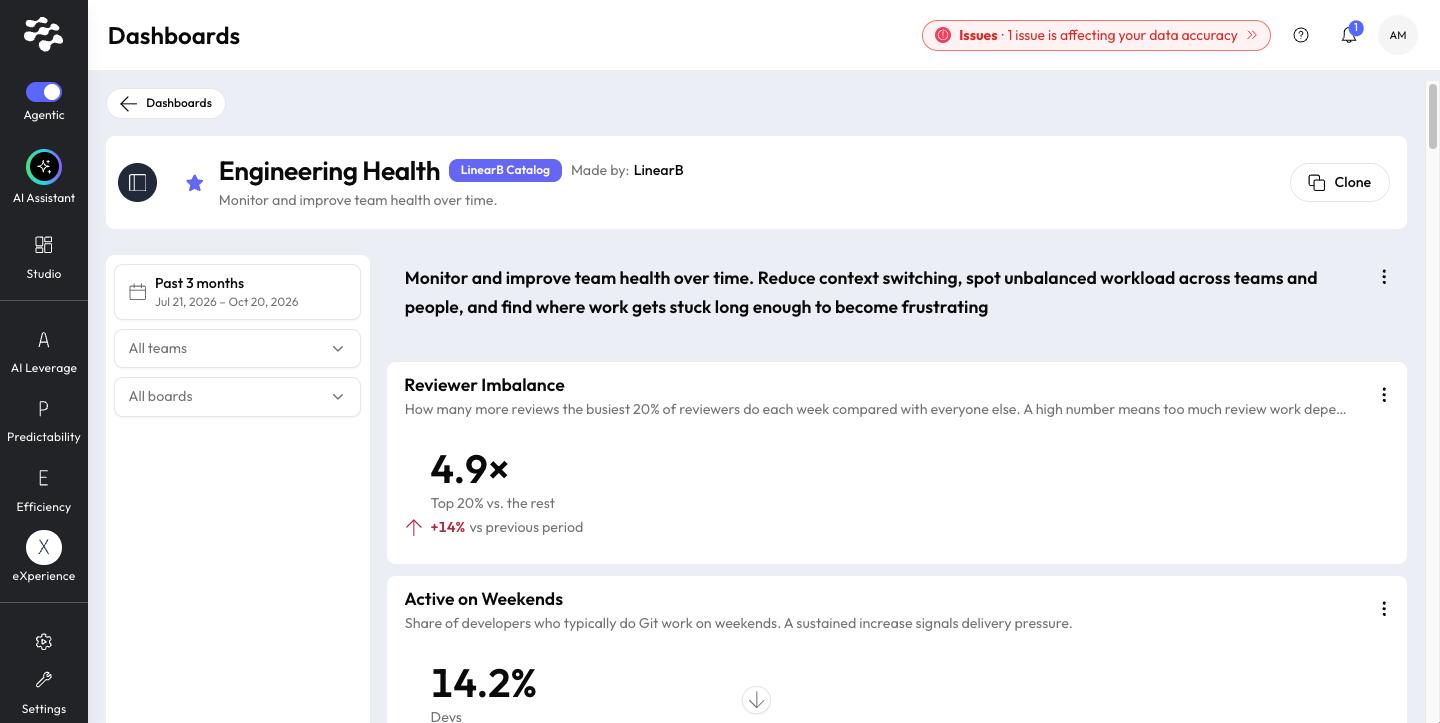
Filters are available on every dashboard, including LinearB Catalog dashboards and dashboards shared with you. Your selections are kept in the page URL, so a link you share opens with the same filters.
Related articles
Need help with Agentic Studio? Contact support@linearb.io or visit the LinearB Help Center.
How did we do?