Configuring Auto-Monitoring for Git Repositories
If your organization uses GitHub or GitLab as your code host, LinearB's Auto-Monitoring feature allows you to automatically track new repositories as they are created.

Overview
Repository Auto-Monitoring lets LinearB automatically monitor repositories from your Git provider without adding each one manually.
When you save a monitoring rule, LinearB immediately starts monitoring every repository in the Discovered state that matches the rule, including repositories discovered before the rule was created.
LinearB then evaluates monitoring rules daily at 00:00 UTC, automatically monitoring additional Discovered repositories that match the configured rules.
LinearB supports rule-based auto-monitoring for GitHub, GitLab, Bitbucket Cloud, and Azure DevOps (ADO), subject to provider and deployment support.
For initial Git setup, see Connecting Your GitHub Account to LinearB .
Supported Auto-Monitoring Scenarios
Repository auto-monitoring is supported for the following Git providers and deployment models:
| Git Provider | Deployment Type | Auto-Monitoring Supported |
|---|---|---|
| GitHub | Cloud | Yes |
| GitLab | Cloud / Self-Managed | Yes |
| Bitbucket | Cloud | Yes (feature flag) |
| Bitbucket | Server (non-OPA) | No |
| Azure DevOps | Cloud | Yes (feature flag) |
Summary
- Immediately monitor matching Discovered repositories when a rule is saved, regardless of when they were discovered.
- Evaluate monitoring rules daily for additional matching repositories.
- Use regex-based rules to control repository inclusion and exclusion.
- Limit monitoring by repository visibility and organization.
- Leave repositories in the Not monitored state outside normal rule-based auto-monitoring.
- Discover repositories weekly per organization, with additional discovery triggered by supported integration events.
- Require sufficient Git integration permissions to discover and access repositories.
How Monitoring Rules Choose Repositories
LinearB tracks repositories using states that indicate whether they have been discovered and whether their data is being monitored.
| Repository State | Description | Effect of Monitoring Rules |
|---|---|---|
| Discovered | LinearB has found the repository but has never monitored it. | A matching rule automatically selects the repository for monitoring. |
| Monitored | LinearB collects data from the repository. | The repository is already monitored. |
| Not monitored | The repository was previously monitored, but monitoring was stopped. | Monitoring rules do not automatically reactivate it. |
How Rules Are Applied
Monitoring rules act only on repositories in the Discovered state.
When you save a rule, and again during daily rule evaluation, LinearB selects Discovered repositories that meet all applicable conditions:
- Match the configured inclusion regex.
- Match the selected repository visibility types.
- Belong to an included organization, where applicable.
- Do not match the configured exclusion regex.
The rule applies to all matching Discovered repositories, regardless of when LinearB originally discovered them.
Previously Monitored Repositories
If you stop monitoring a previously Monitored repository, its state changes to Not monitored. Monitoring rules do not reactivate repositories in this state.
Repositories in the Discovered state cannot be moved directly to Not monitored using either the LinearB UI or the repositories API.
To prevent a Discovered repository from being automatically monitored, configure an exclusion regex that matches its name before saving the monitoring rule.
Exception: Repository Access Is Lost and Restored
If LinearB loses access to a repository and subsequently regains access, the repository can return to the Discovered state.
For example, this can happen when a repository is removed from and later re-added to a GitHub App installation.
Once the repository returns to Discovered, a matching monitoring rule can automatically monitor it again.
Before You Begin
- You must be a Company Admin in LinearB.
- Your Git integration must have access to the repositories you want to monitor.
- Auto-Monitoring for Bitbucket Cloud and Azure DevOps requires the relevant feature flag.
- Review existing Discovered repositories before creating or modifying a monitoring rule.
- Newly monitored repositories count toward your plan's repository limit.
- If auto-monitoring is not supported for your provider or deployment type, the Monitoring Rules option will not appear in the UI.
Keep Existing Repositories Out of Auto-Monitoring
Before saving a monitoring rule, review your existing Discovered repositories to ensure that you do not accidentally begin monitoring repositories you intend to exclude.
- Go to Settings → Company Settings → Git.
- Under Integrations and Repositories, expand the relevant Git integration.
- Use the State filter and select Discovered.
- Review the repositories against your planned inclusion, exclusion, visibility, and organization rules.
- Identify any repositories that you do not want to monitor.
Exclude Repositories by Name
If repositories you want to exclude share a naming pattern, configure an exclusion regex before saving the monitoring rule.
For example, use -archive$ to exclude repository
names ending in -archive.
Other examples include:
| Regex Pattern | Purpose |
|---|---|
^test.* |
Match repository names starting with test. |
-archive$ |
Match repository names ending in -archive. |
^docs-.* |
Match repository names starting with docs-. |
Exclude Individual Repositories
To prevent a Discovered repository from being automatically monitored, configure an exclusion regex that matches its name.
For example, to exclude a repository named
legacy-service, use the following pattern
in the Exclude field:
^legacy-service$
This pattern matches the specified repository name. You can combine patterns to exclude multiple repositories.
If you need help creating exclusion rules for individual repositories, contact LinearB Support before saving your monitoring configuration.
Configure Repository Auto-Monitoring
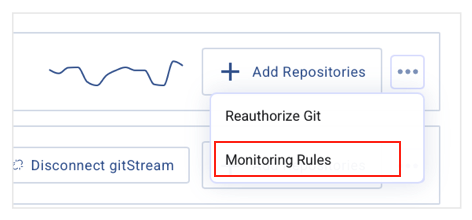
1. Access Monitoring Rules
- Go to Settings → Company Settings.
- Open the Git tab.
- Open the three-dot menu next to Add Repositories.
- Select Monitoring Rules.
2. Define Repository Inclusion Rules
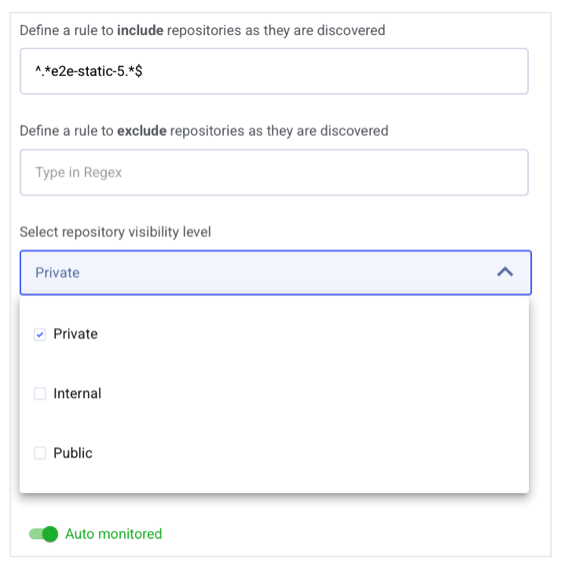
In the Include field, enter a regular expression that identifies the repositories you want to monitor.
-
Use
.*to match all repository names. -
Use
^service-.*to match repository names starting withservice-.
.* is broad.
When the rule is saved, all matching Discovered repositories
within the selected scope are selected for monitoring immediately.
3. Define Repository Exclusion Rules
In the Exclude field, enter a regular expression to exclude repositories from auto-monitoring.
-
Use
^test.*to exclude names starting withtest. -
Use
-archive$to exclude names ending with-archive.
A repository must match the inclusion rule and must not match the exclusion rule to be eligible for rule-based monitoring.
4. Verify Git Integration Access
Ensure the Git integration has sufficient permissions to access the repositories you intend to monitor. Repositories outside the integration's authorized scope cannot be detected through that integration.
5. Select Repository Visibility
Select the applicable visibility types: Private, Internal, and/or Public.
Available visibility options depend on your Git provider. Only repositories matching the selected visibility types are eligible for rule-based monitoring.
6. Configure Organizational Scope (GitHub Only)
For GitHub integrations, define which organizations are included in the monitoring rule.
Depending on the available controls, you can use an organization name regex or manually select organizations.
-
.*matches all organization names in scope. -
^linear-.*matches organization names starting withlinear-.
Alternatively, manually select the organizations to include.
7. Enable Auto-Monitoring
Ensure the Auto monitored toggle is enabled.
8. Review and Save
- Review your inclusion and exclusion regex patterns.
- Confirm the repository visibility settings and selected organizations.
- Check that existing Discovered repositories you do not want to monitor are excluded.
- Click Save.
LinearB immediately applies the saved rule to matching Discovered repositories. It then evaluates the rule daily at 00:00 UTC for additional repositories that have been discovered.

Important Notes
- Immediate application: Saving a rule applies it to all matching Discovered repositories, including those discovered before the rule was created.
-
Broad inclusion rules:
The regex
.*matches every repository name. Without suitable exclusions, all matching Discovered repositories within the selected organizations and visibility types are automatically selected for monitoring when the rule is saved. - Repository discovery: LinearB automatically discovers repositories once a week per organization, on a fixed weekday, provided the Git integration is healthy. Additional discovery can occur following integration creation, manual discovery, onboarding, supported GitHub App events, or Azure DevOps OAuth reauthorization. Consequently, repositories may be discovered sooner than the next scheduled weekly run.
- Monitoring rule evaluation: Repository discovery and monitoring-rule evaluation are separate processes. Monitoring rules are applied immediately when saved and are subsequently evaluated daily at 00:00 UTC.
- Stopped monitoring: Repositories in the Not monitored state are not automatically reactivated during normal rule evaluation.
- Access restored: A repository can return to Discovered after LinearB loses and subsequently regains access. If it matches an active monitoring rule, it can be monitored again.
- GitHub App - Essentials plan: GitHub App discovery automatically activates eligible repositories on Essentials, up to the repository quota, without requiring a monitoring rule. On other plans, newly discovered repositories remain Discovered until manually monitored or selected by a rule.
- Repository limits: Monitored repositories count toward your plan's repository limit. Review existing Discovered repositories before enabling broad monitoring rules.
- New organizations: GitHub organizations added later must be manually selected in monitoring rules.
- Regex precision: Carefully define inclusion and exclusion patterns to avoid automatically monitoring unintended repositories.
- UI availability: If auto-monitoring is unavailable for your Git provider or deployment type, the Monitoring Rules option does not appear in the integration menu.

Next Steps
After configuring auto-monitoring, return to Settings → Company Settings → Git and review the repositories listed under Integrations and Repositories.
Use the State filter to check which repositories are Discovered, Monitored, or Not monitored.
For more information about manually monitoring and unmonitoring repositories, see Managing Git Integrations .
You can also connect your project management tool: Connect LinearB to your PM tool .
Auto-monitoring reduces manual repository setup while giving administrators control over which repositories contribute to engineering metrics.
How did we do?
Allowlist LinearB IP Addresses in GitHub Cloud
Configuring Release Detection in LinearB