Managing AI Services and Tools
Control how AI operates in LinearB. Learn how AI Services interact with individual AI tools and automations, what happens when AI is disabled, and how admins can manage AI behavior, availability, and operational modes.

LinearB provides AI-driven features that help engineering teams improve code quality, automate repetitive work, and track adoption of AI tools. These capabilities are controlled through two areas in Settings:
- AI Services — A master toggle that enables or disables LinearB AI across your entire organization.
- AI Tools & Automations — Detailed configuration for LinearB AI automations, GitHub Copilot, Cursor, and related integrations.

Summary
- AI Services is the org-wide master toggle for LinearB AI features.
- AI Tools & Automations is where you configure automations and AI tool integrations (Copilot, Cursor).
- Disabling AI Services stops LinearB AI processing and AI-powered automations.
- If the AI Services toggle is greyed out, contact LinearB Support.
Before you begin
- Permissions: Only admins can toggle AI Services for an organization.
- Plan: This content applies to the Essentials plan.
AI Services
The AI Services toggle is located under Settings > General > AI Services.
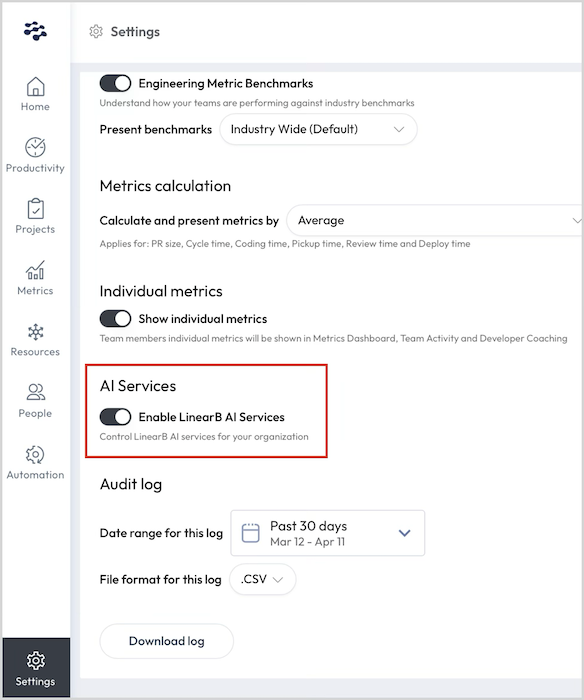
- When enabled, AI features (AI Insights, AI Automations, Copilot, Cursor, Dependabot) are available.
- When disabled, LinearB stops running AI processing and AI-powered automations.
Effects of disabling AI Services
If AI Services are disabled:
- AI Automations (AI Review, AI Description) stop running.
- AI Insights no longer displays AI-related adoption or usage metrics.
- GitHub Copilot and Cursor metrics dashboards stop reporting activity.
- Dependabot automations will not run.
- Other dashboards (DORA, Delivery, Quality, Throughput) continue to function, but without AI-driven enhancements.
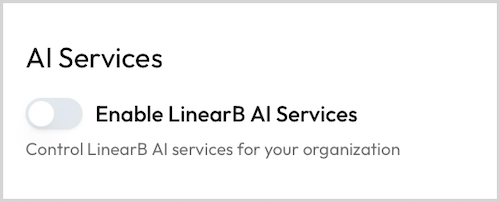
In some cases, the AI Services setting may appear greyed out and cannot be enabled by admins. To enable AI Services in this scenario, contact LinearB Support for assistance.
AI Tools & Automations
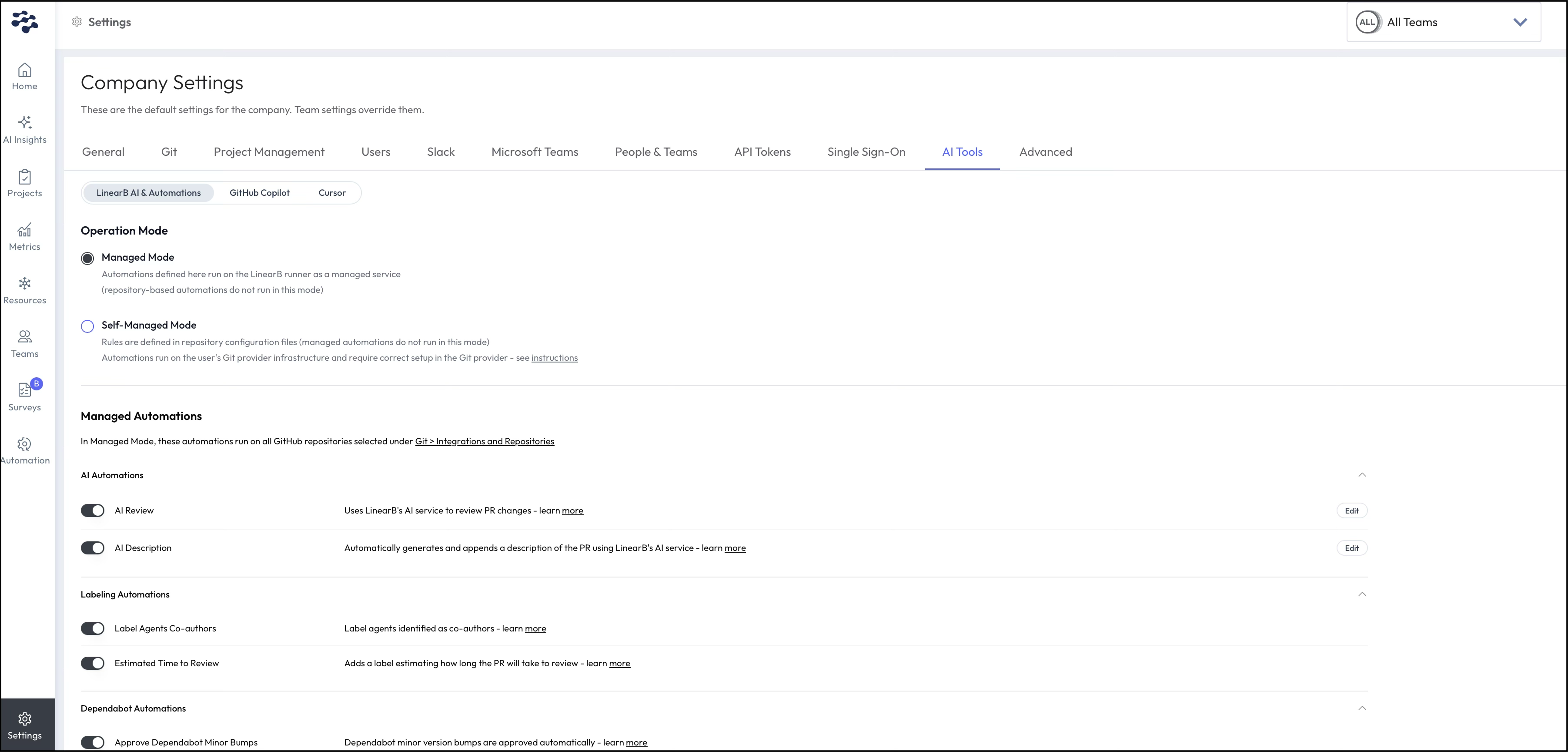
Navigate to Settings > AI Tools to configure individual AI features. These are grouped into three areas:
- LinearB AI & Automations — AI Review, AI Description, labeling, and Dependabot automations.
- GitHub Copilot — Tracks adoption and usage metrics for Copilot.
- Cursor — Tracks adoption and usage metrics for Cursor.

Operation Mode
Before enabling automations, choose an operation mode:
- Managed Mode — Automations run on the LinearB runner as a managed service. Required for AI Insights.
- Repository Mode — Automations are defined in repository configuration files and run on your Git provider infrastructure. Not tracked in AI Insights.
How did we do?
Enabling LinearB AI Services