Connect Azure DevOps Projects to a Team
To accurately track work for a specific team, LinearB allows you to define which Azure DevOps projects and area paths map to that team’s scope. This ensures only relevant issues are counted toward yo…

To accurately track work for a specific team, LinearB allows you to define which Azure DevOps projects and area paths map to that team’s scope. This ensures only relevant issues are counted toward your team’s metrics.

Prerequisites
If you haven’t connected your project management tool yet, follow this guide: Connect LinearB to your Project Management Tool. Once connected, you can proceed to link Azure DevOps projects to your teams.
Step 1: Add the Azure DevOps project to LinearB
Before assigning work items to a team, ensure your Azure DevOps project is available in LinearB.
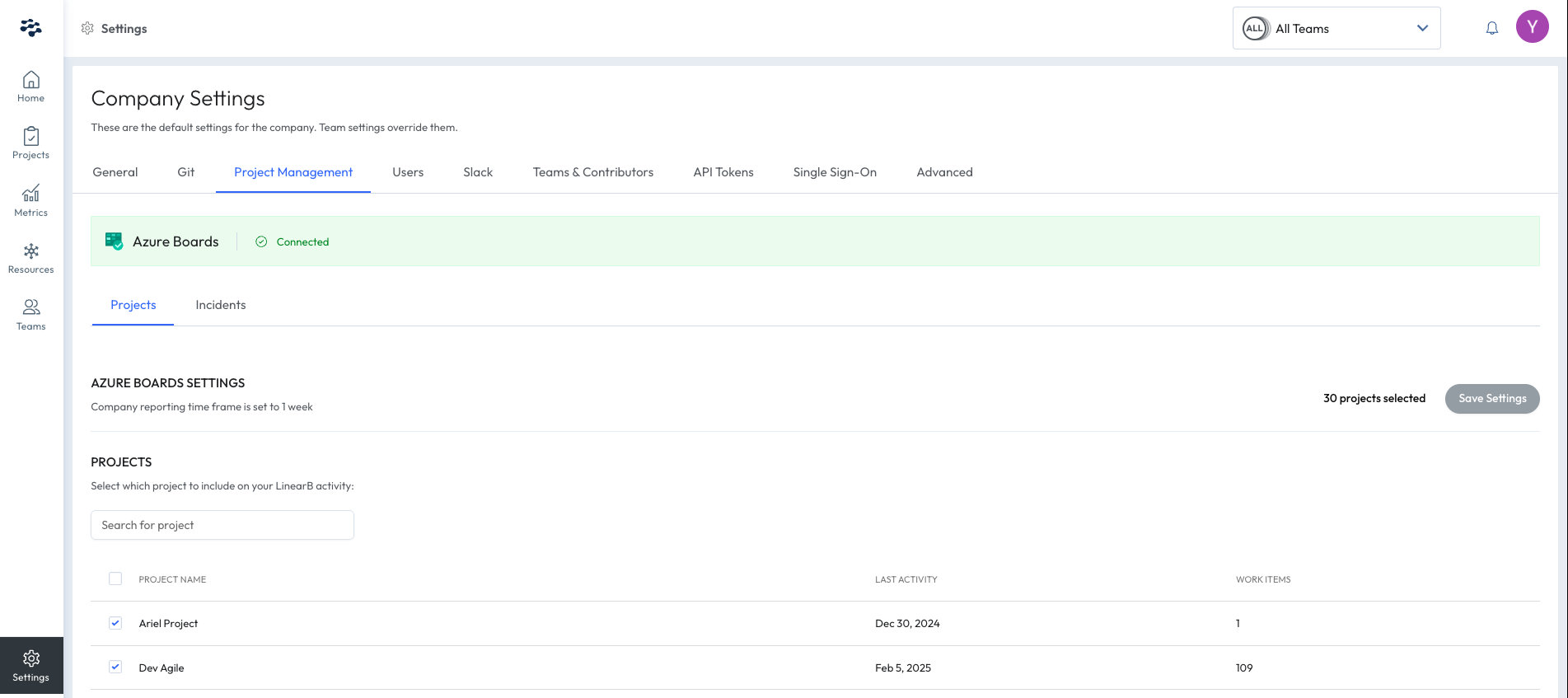
- In the LinearB side menu, go to Settings > Project Management > Projects.
- Select All Teams.
- Review the list of synced Azure DevOps projects from your project management integration.
- Select the project(s) your teams will use.
LinearB will begin processing your selections for use in the Iterations and Projects views.

Step 2: Link the project to a team
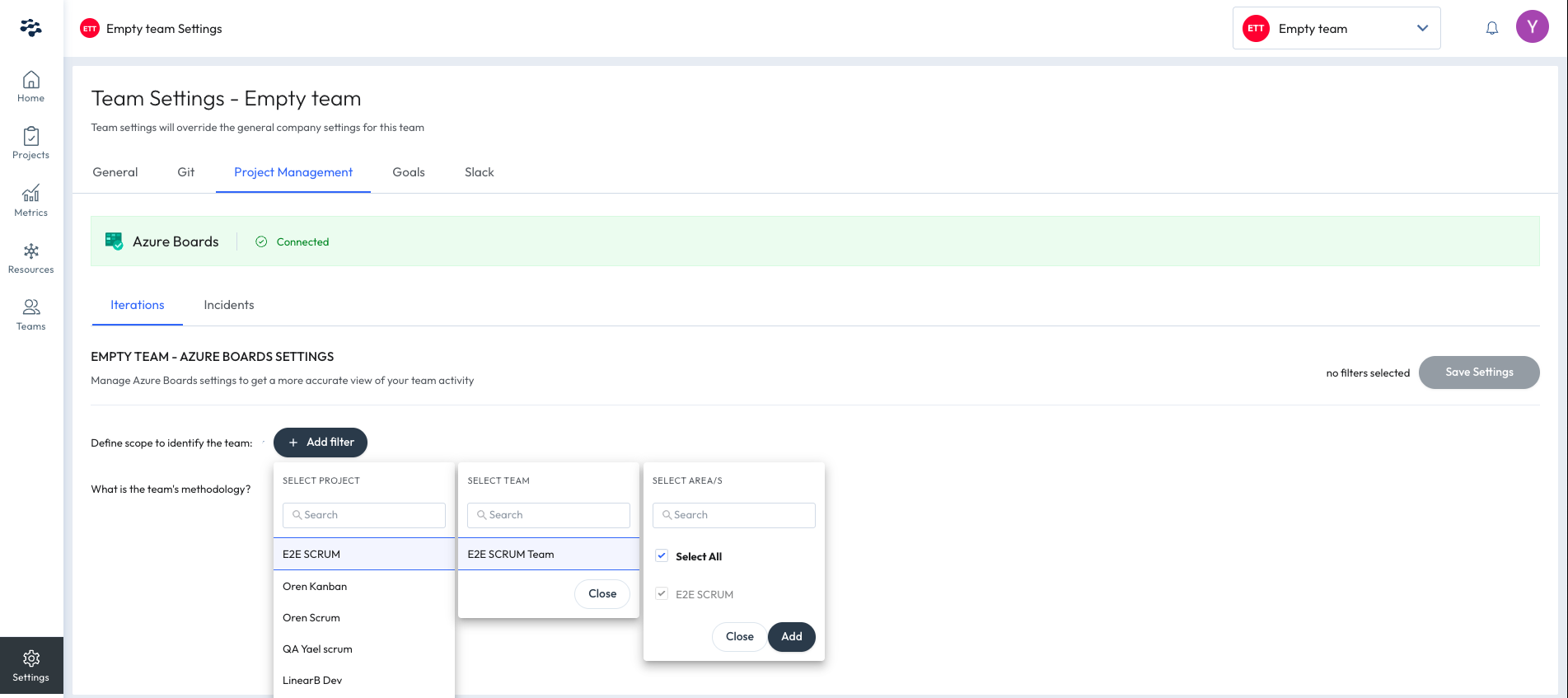
- In the sidebar, go to Settings and select a team.
- Navigate to Projects Management > Iterations.
- Click + Add Filter.
- Select the Project, Team, and Areas.
- Click Add.

Step 3: Select the team's methodology
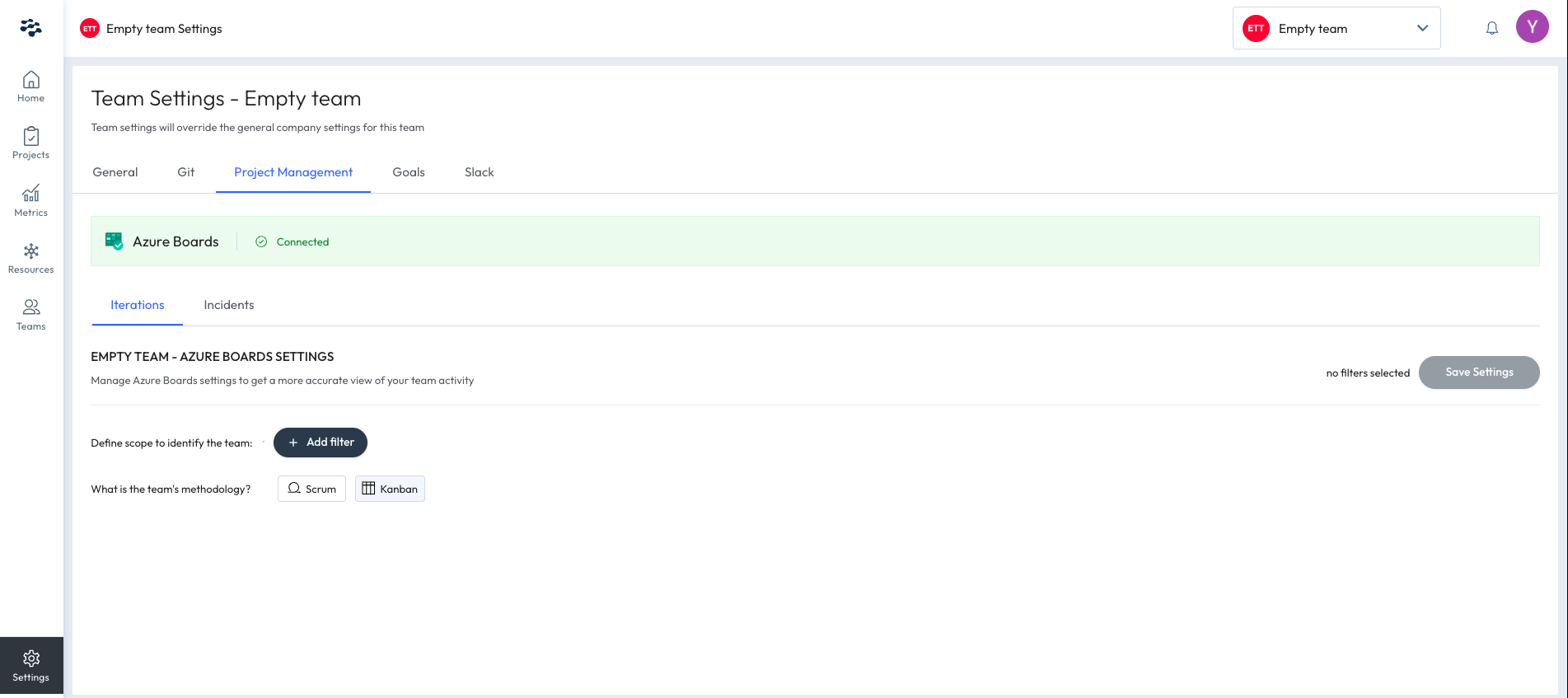
LinearB supports both Scrum and Kanban methodologies:
- Scrum: Use iteration start/end dates from your project management tool.
- Kanban: LinearB will segment your workflow into 1-week intervals by default.

Step 4: Customize the scrum iterations
You can control which scrum iterations are pulled into LinearB in two ways:
- Using Regular Expressions
Define a regular expression (regex) to filter iterations based on a specific naming convention. This approach automatically includes any new iterations that match your regex, ensuring your team always works with relevant data. - Manual Selection
- Review the list of available iterations and manually select or deselect specific iteration names.
- Uncheck iterations that are irrelevant to your team, providing greater control over your team's focus and workflow.

Step 5: Save settings
- Click Save Settings.
It may take a few minutes for LinearB to reprocess your team’s data. Once complete, updated projects and iterations will appear in your dashboards.
How did we do?
Connect Azure Boards to LinearB (OAuth 2.0 or PAT)
Connect Jira Boards to a Team
