Table of Contents
How do I manage the number of contributors in my account?
The account page helps you manage the number of LinearB team contributors active in your account.

A contributor is a member of your Git organization who is included in your LinearB teams. Most LinearB contracts are based on the number of Git contributors included in your teams.
Summary
- View and manage contributors in Settings → Company Settings → Teams & Contributors → Contributors.
- Use the action icon to merge duplicate identities or remove a contributor from billing.
- Merging combines activity under one billed contributor.
- Removing stops data collection and reporting for that contributor.
What is a contributor?
A contributor is a member of your Git org who has been included in your LinearB teams. LinearB pricing is typically based on the number of contributors included in your teams.
Managing your contributor list
To access the contributor list:
- Click the Settings gear.
- Select Company Settings.
- Open the Teams & Contributors tab.
- Select Contributors.
The Contributors tab lists all team members, shows the total number of contributors, and lets you search and edit specific contributors.
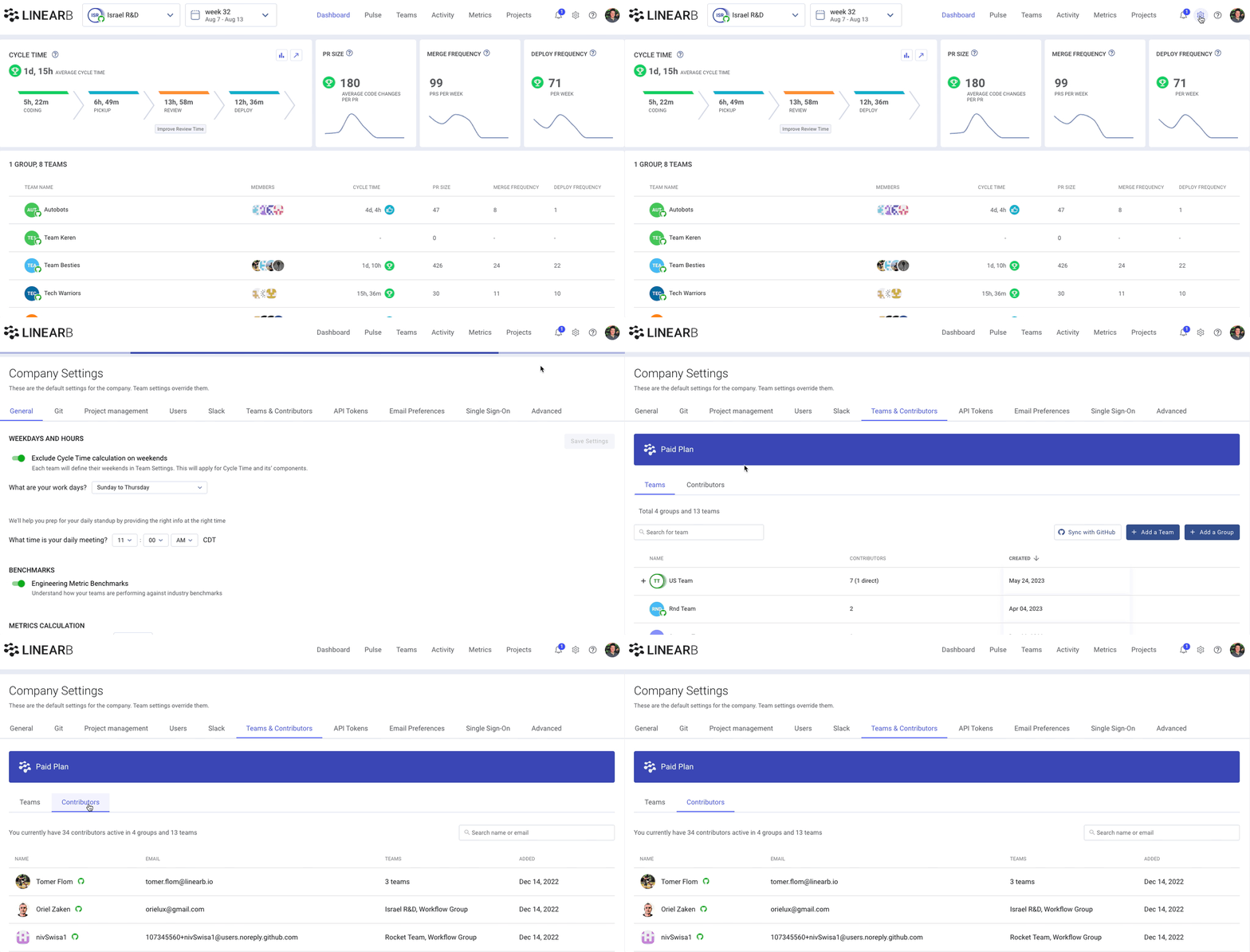
From this list, click the action icon to the right of any contributor to either merge or remove the contributor for billing purposes.
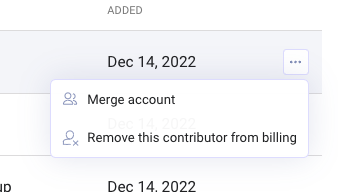
Merging contributors
It’s common for a developer to contribute under multiple Git accounts, email addresses, or usernames. LinearB initially treats each email address and/or username as a unique contributor.
To unify a developer’s activity, merge the contributor identities so all work is aggregated in one place. Learn more: How do I merge contributor accounts?
After merging, the developer is billed as one contributor, and their activity is combined into a single profile.
Removing contributors
If a team member leaves the company, you can remove them from your teams and reports. When removed, LinearB stops collecting data and displaying metrics for that contributor.
To remove a contributor from billing:
-
In the contributor list, click the action icon to the right of the contributor:

- Select Remove this developer from billing.
How did we do?
Configuring Auto-Monitoring for Git Repositories
Managing Git Integrations